Add custom titles, labels and buttons
The Forms Editor offers you the ability to customise every aspect of the main two forms: Interest form and Decline form.
Customise the main Call-To-Action buttons
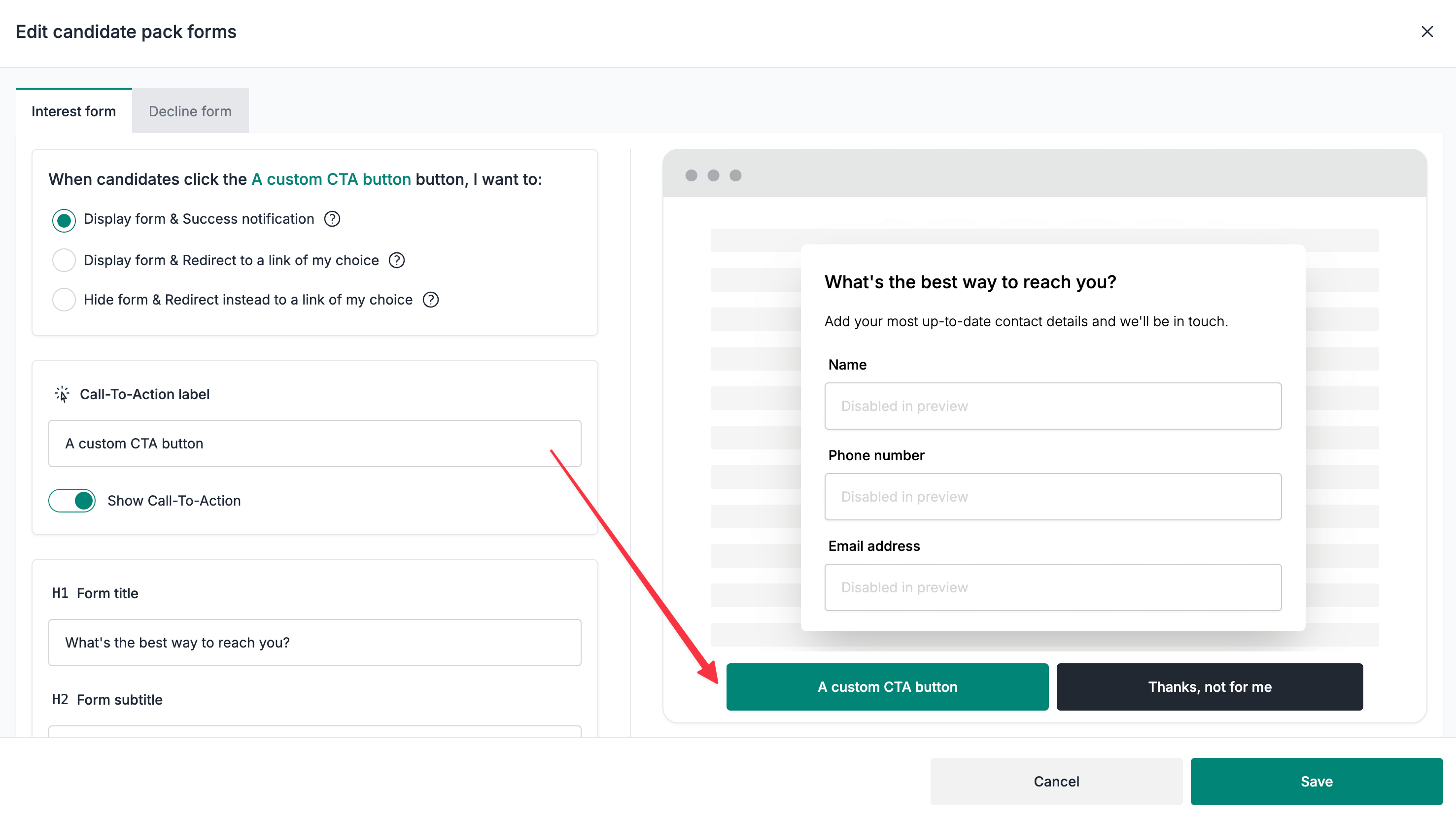
- Select the
Interest formor theDecline formtab (depending on what you are looking to customise) - Scroll down to the
Call-To-Action labelsection and customise the label as required - Click on the
Savebutton to save your changes
Disable the main Call-To-Action buttons
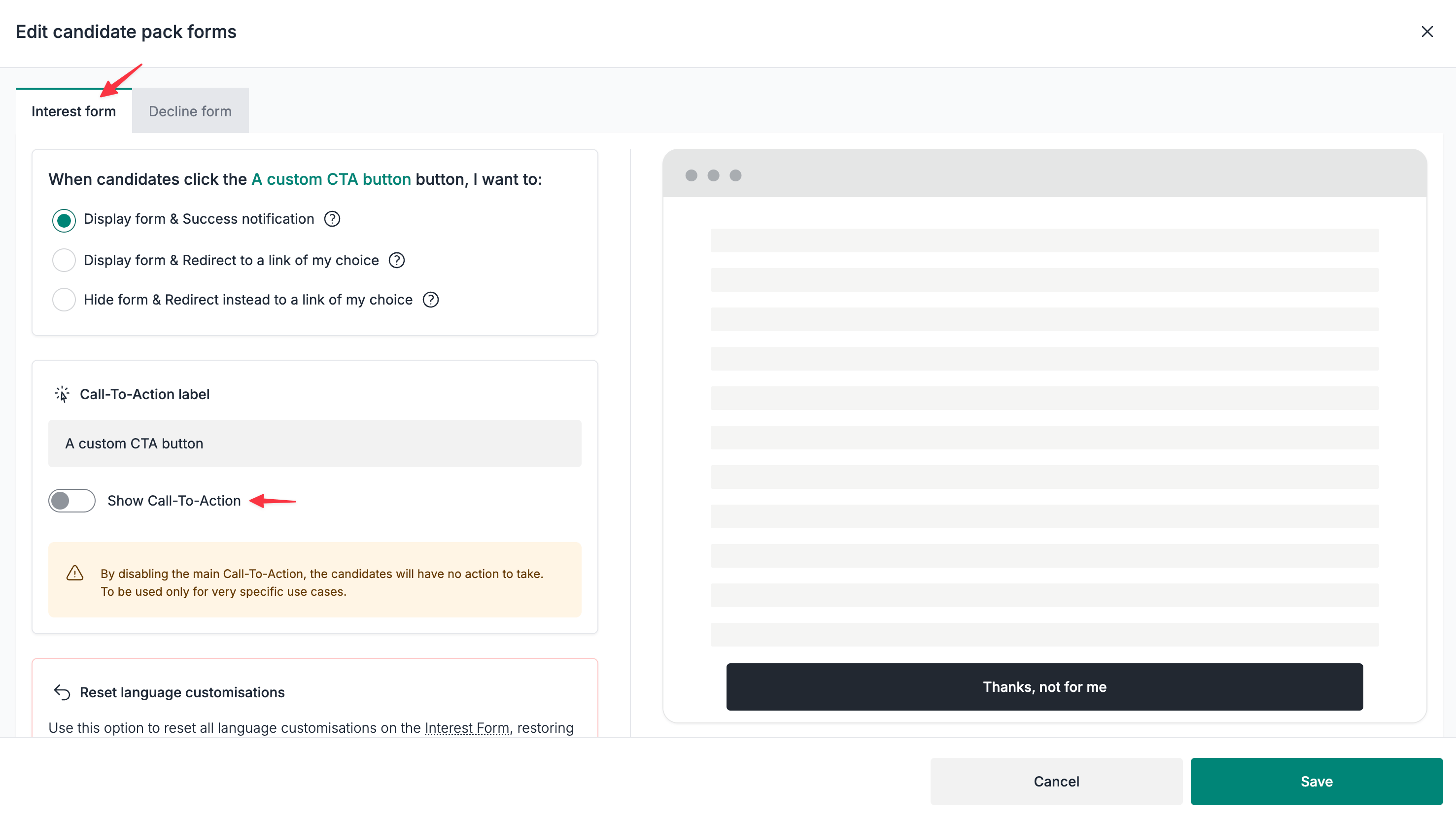
⚠️ This option will effectively hide the buttons, meaning there will be no forms displayed (nor any redirects). To be used only for very specific use cases.
- Select the
Interest formor theDecline formtab (depending on what you are looking to customise) - Disable the
Show Call-To-Actionunder theCall-To-Action labelsection - Click on the
Savebutton to save your changes
Customise the form titles and subtitles
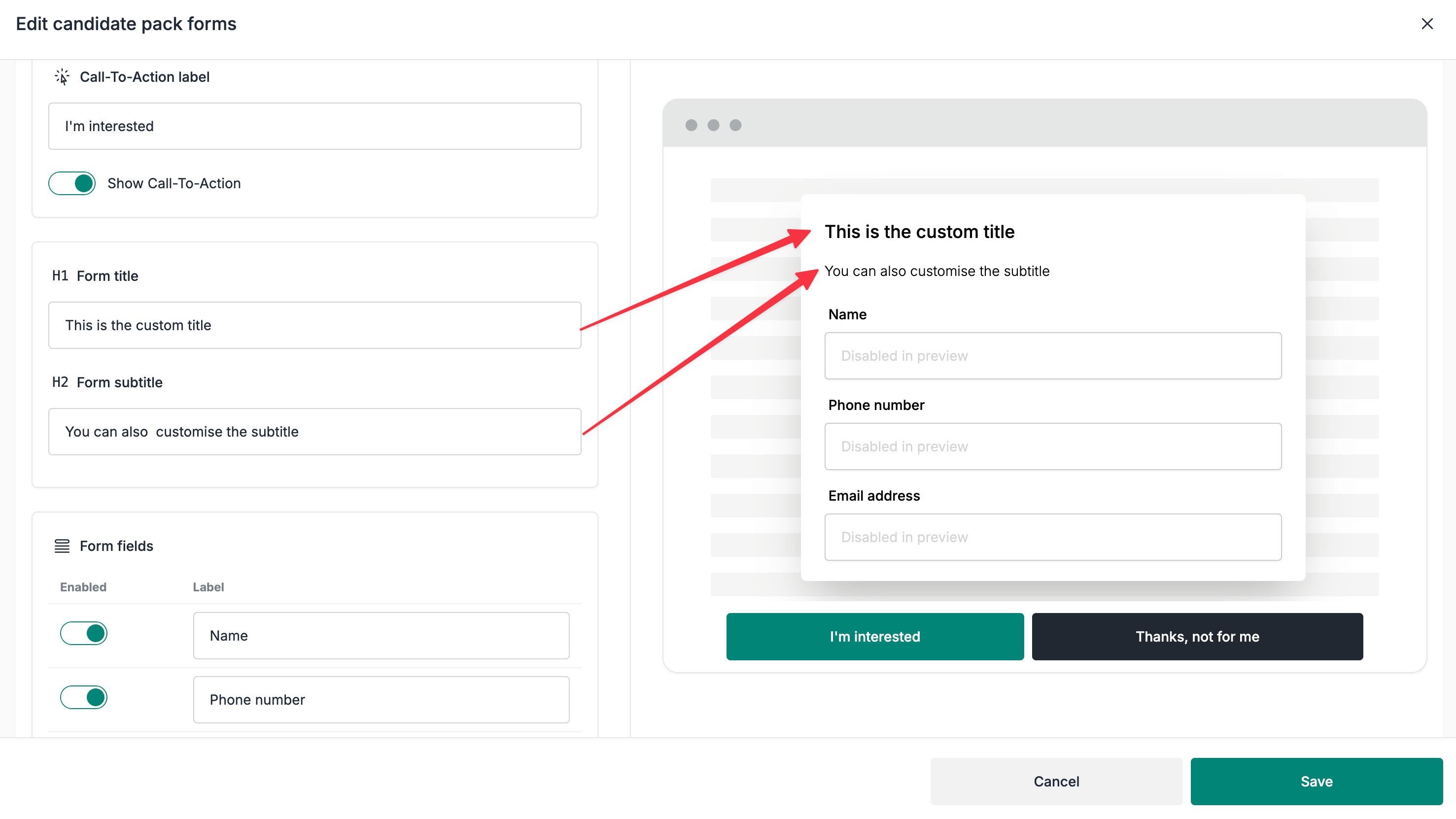
- Select the
Interest formor theDecline formtab (depending on what you are looking to customise) - Scroll down to the
Form titleandForm subtitlesections - Click on the
Savebutton to save your changes
Customise the decline reason fields
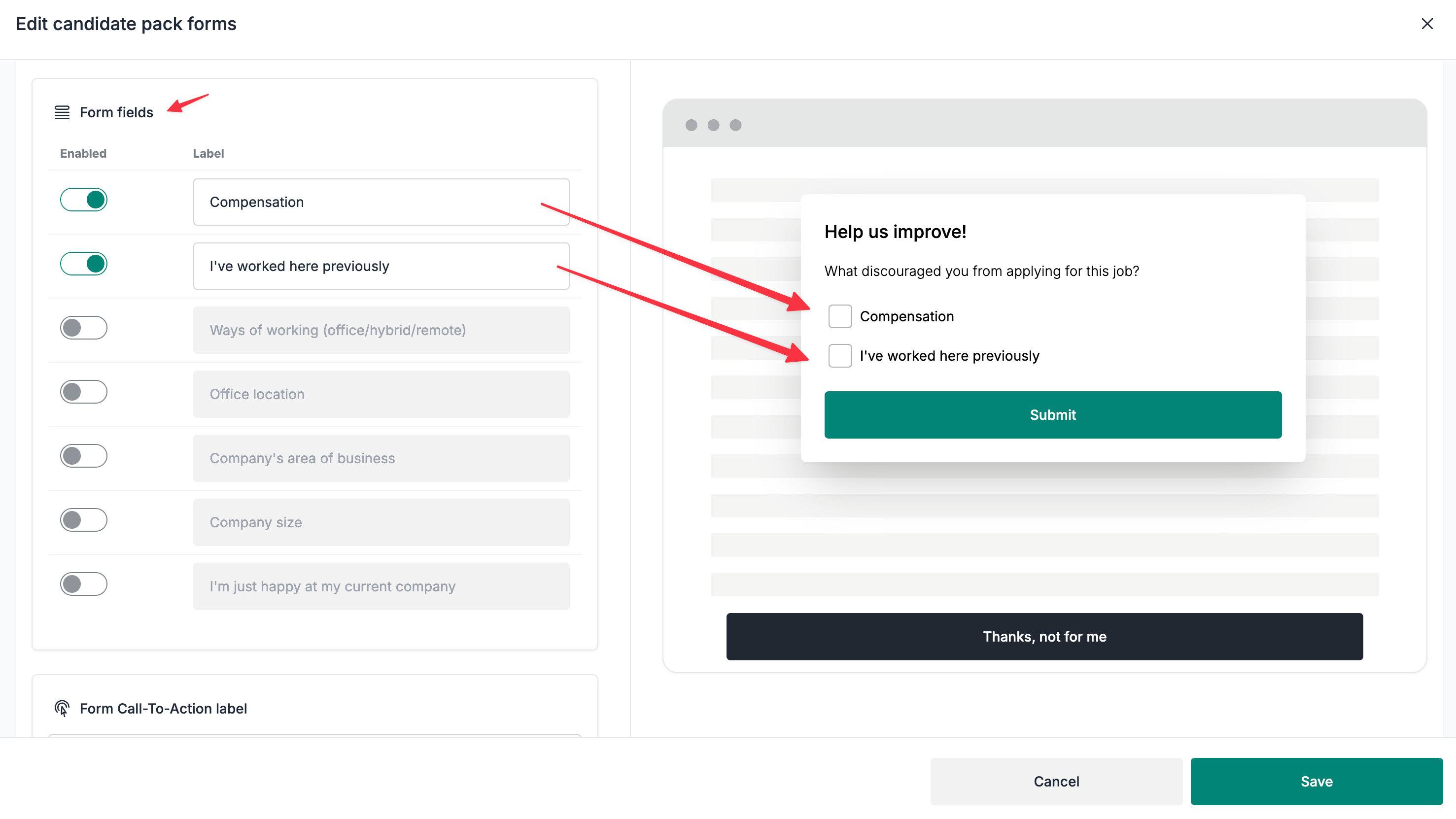
⚠️ By customising the decline reason fields, the
Reasons for decliningtable on the candidate pack's Stats page will also be updated.
- Select the
Decline formtab - Scroll down to the
Form fieldssection - Enable/Disable the fields as required
- Rename the fields as required
- Click on the
Savebutton to save your changes
Add conditional questions to the interest form
You can also add custom screening questions that appear only after a particular answer, such as asking for a notice period when a candidate is not available immediately. Configure this in the Custom questions section of the Interest form tab using Show this question.
See how to configure and test conditional questions for the steps, examples and supported conditions.
Resetting the form customisation
⚠️ This action cannot be undone, please proceed with caution.
- Select the
Interest formor theDecline formtab (depending on what form you are looking to reset) - Scroll down to the
Reset language customisationssection
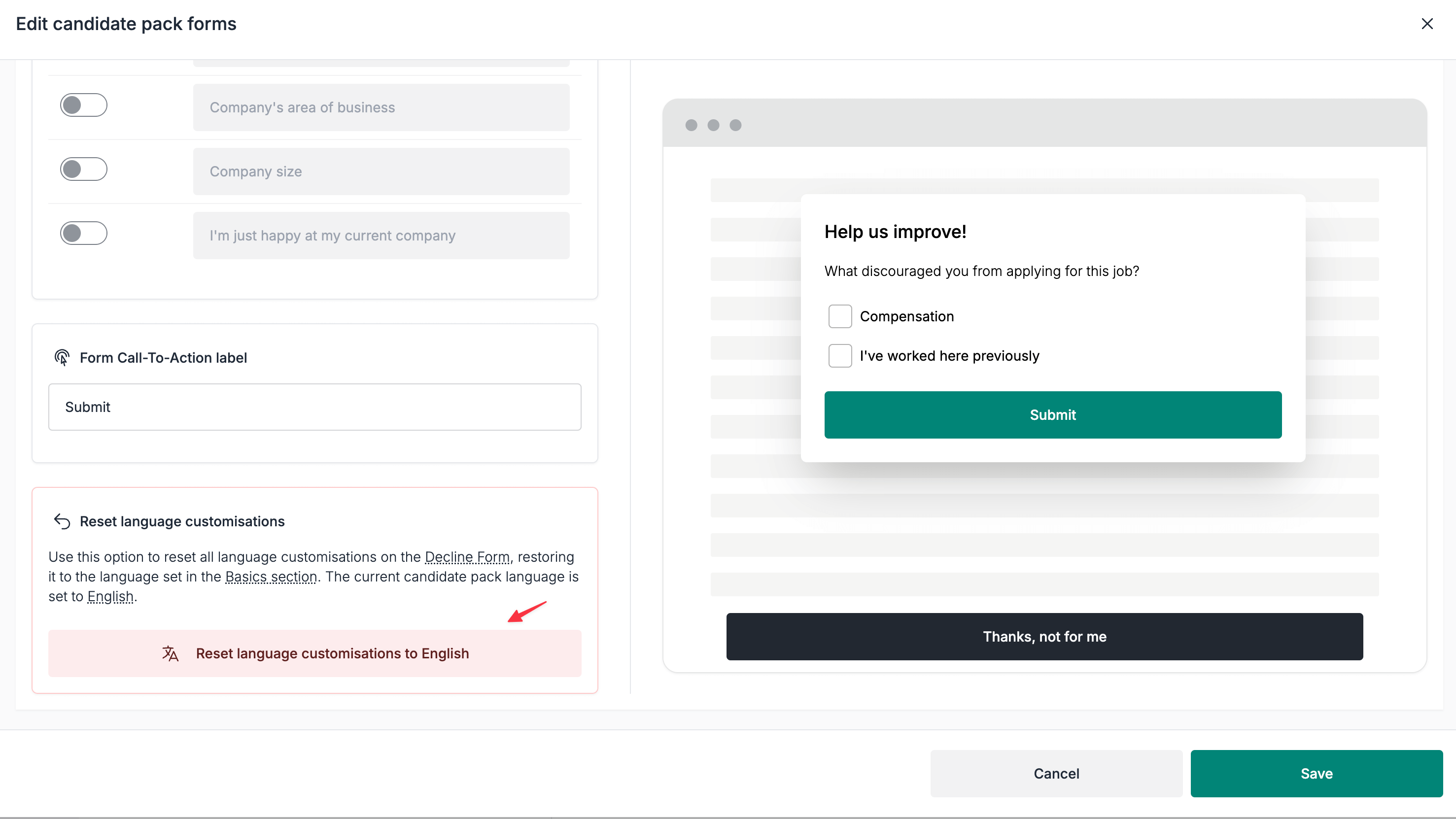
- Click the
Reset language customisations to {language}button
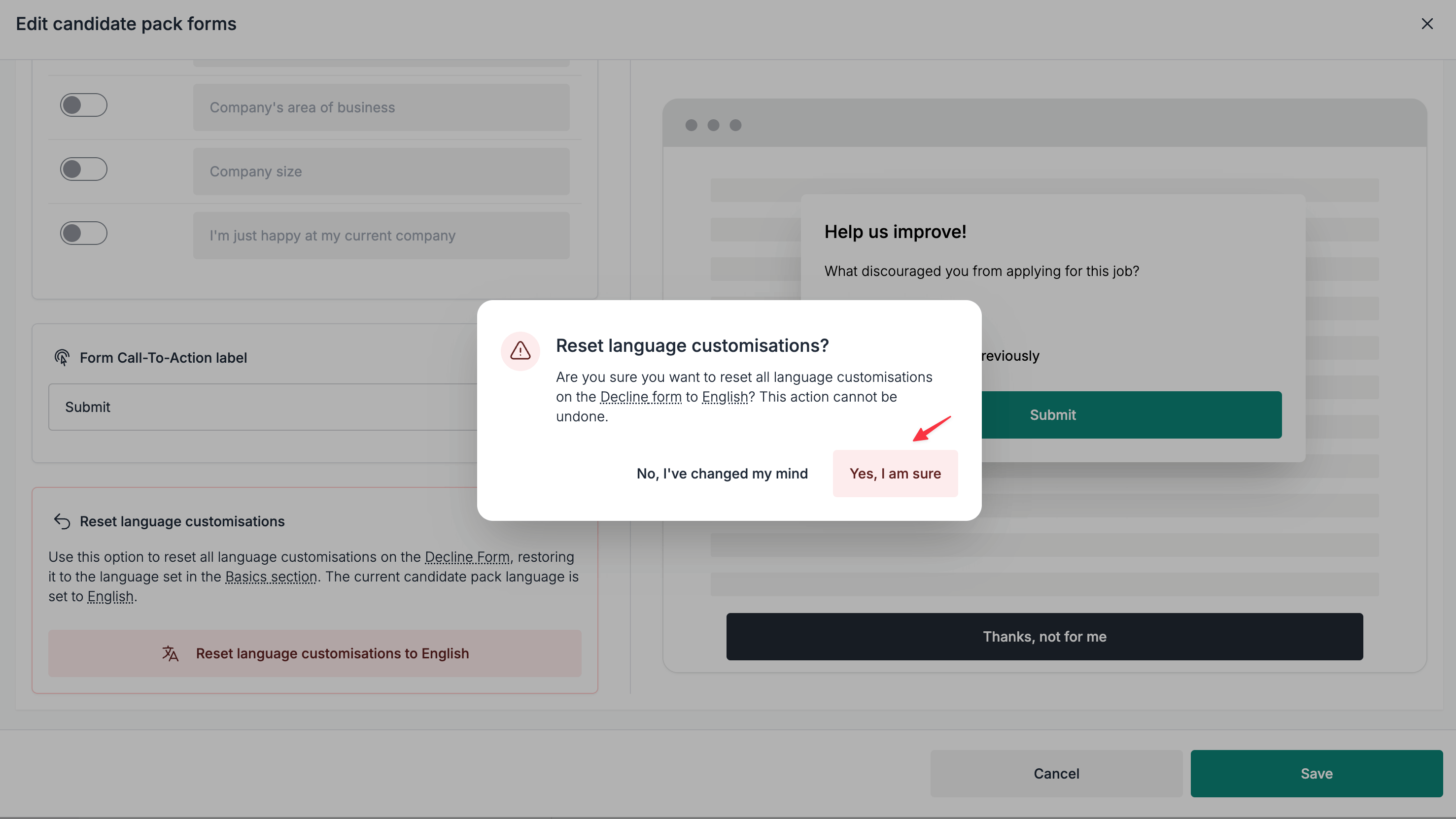
- Click the
Yes, I am surebutton on the confirmation modal